
Download grabUp – Fast Screen Capture, Instant Sharing, Free macOS Tool
Overview of grabUp
grabUp is a lightweight, preference‑pane‑based utility designed for macOS users who need to capture a portion of their screen and share it instantly. By pressing the simple keyboard shortcut ⌘ + ⌥ + 4, the tool opens a selection box, lets you snap the desired area, and then automatically uploads the image to a unique URL. The URL can be copied with ⌘ + V and pasted anywhere – chat, email, social media, or documentation – making the sharing process virtually frictionless. While grabUp’s core idea is elegantly minimal, it does omit some conveniences like renaming files or saving locally before upload. Nevertheless, for anyone whose workflow revolves around quick web‑based image sharing, grabUp delivers a surprisingly fast and secure experience, all at no cost.
Key Features
- Instant screen region capture via a single keyboard shortcut.
- Automatic upload to a dedicated grabUp URL for each image.
- Menu‑bar icon that displays the most recent captures.
- Zero‑cost, free to download and use.
- Lightweight preference pane that does not hog system resources.
Installation, Usage Instructions & Compatibility
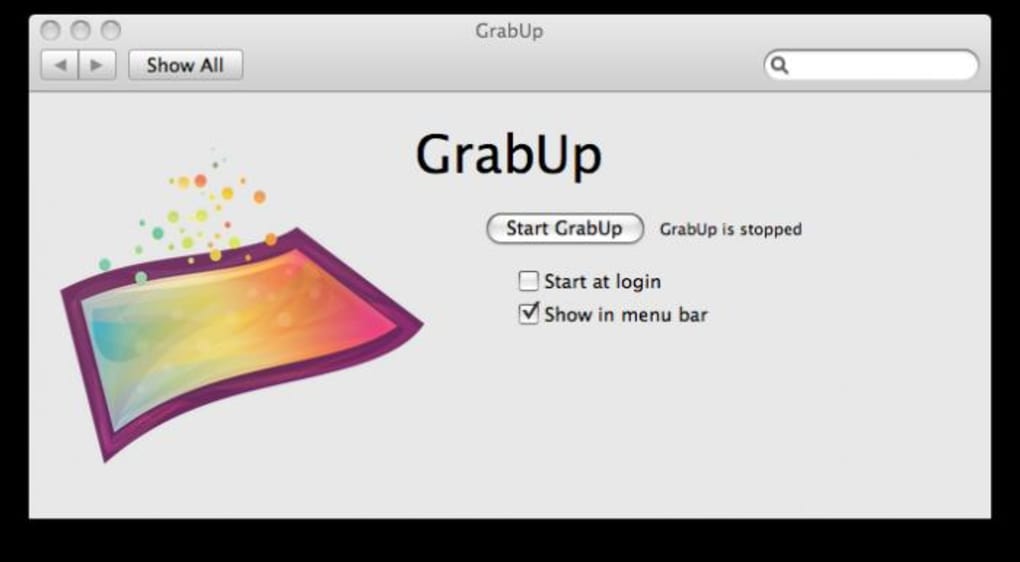
Installing grabUp is straightforward. Download the .dmg file from the official website, open it, and drag the grabUp preference pane into the System Preferences → Extensions folder. Once installed, enable the pane and grant the necessary screen‑recording permissions in System Settings → Security & Privacy → Privacy → Screen Recording. After a quick restart of System Preferences, the grabUp icon will appear in your menu bar, ready for use.
To capture a screenshot, press ⌘ + ⌥ + 4. A crosshair cursor appears, allowing you to click‑drag the region you wish to capture. Release the mouse button, and grabUp instantly uploads the image to its servers. The generated URL is automatically copied to the clipboard, so you can paste it (⌘ + V) into any application. If you need to view recent captures, click the menu‑bar icon; a dropdown shows thumbnails of the latest uploads, each linked to its URL.
Compatibility: grabUp runs on macOS 10.12 Sierra and later. The utility is optimized for both Intel‑based Macs and Apple Silicon (M1/M2) devices, offering native performance without noticeable lag.
Because grabUp is a web‑centric tool, it does not store images locally by default. Users who prefer a local backup must manually download the image from its URL. This design choice keeps the app lightweight, but it also means you should keep a record of the URLs if you need long‑term access.
Pros and Cons – What Works and What Doesn’t
Pros
- Lightning‑fast capture and upload – screenshots are ready to share in seconds.
- Completely free with no hidden fees or subscription model.
- Small footprint; runs quietly in the background without draining battery.
- Secure HTTPS upload ensures your images are transmitted safely.
- Convenient menu‑bar access to recent captures.
Cons
- No option to rename files or add custom metadata before upload.
- Images are not stored locally by default, requiring manual download for archival.
- Limited to basic capture; advanced editing tools are absent.
- Relies on an internet connection; offline use is not possible.
- Shortcut documentation is not displayed in the preference pane, which can be confusing for new users.
Overall, grabUp scores a solid four out of five stars. Its speed and zero‑cost model make it a compelling choice for developers, designers, and anyone who frequently shares screenshots online. The lack of local storage and limited editing features keep it from achieving a perfect rating, but for its intended purpose – rapid, web‑based sharing – grabUp delivers exactly what it promises.
Frequently Asked Questions
Is grabUp really free?
Yes, grabUp is completely free to download and use. There are no hidden charges, subscription fees, or premium tiers.
Can I change the default shortcut?
Currently, grabUp does not provide an in‑app option to customize the capture shortcut. Users must rely on the preset ⌘ + ⌥ + 4 combination.
How secure are the uploaded images?
All uploads are performed over HTTPS, ensuring that your screenshots are encrypted during transfer. However, the images are publicly accessible via their URL, so treat them as you would any shared link.
Do I need an internet connection to use grabUp?
Yes. Since grabUp uploads each capture to a remote server, an active internet connection is required for the core functionality.
Can I delete an image after it’s uploaded?
The web interface provides a delete link for each image, allowing you to remove it from the server if you no longer need it.
Conclusion – Should You Download grabUp?
If you spend a lot of time sharing screenshots across Slack, Discord, email, or forums, grabUp offers a no‑frills, ultra‑fast solution that eliminates the middle steps of saving, locating, and attaching files. Its free price tag and minimal system impact make it an attractive addition to any macOS workflow. While power users may miss features like local storage, renaming, or advanced editing, the core promise – capture and share in a single keystroke – is fulfilled reliably. For anyone looking to streamline visual communication without paying for a heavyweight suite, grabUp is definitely worth a download.
Download grabUp now and start sharing screenshots instantly!







